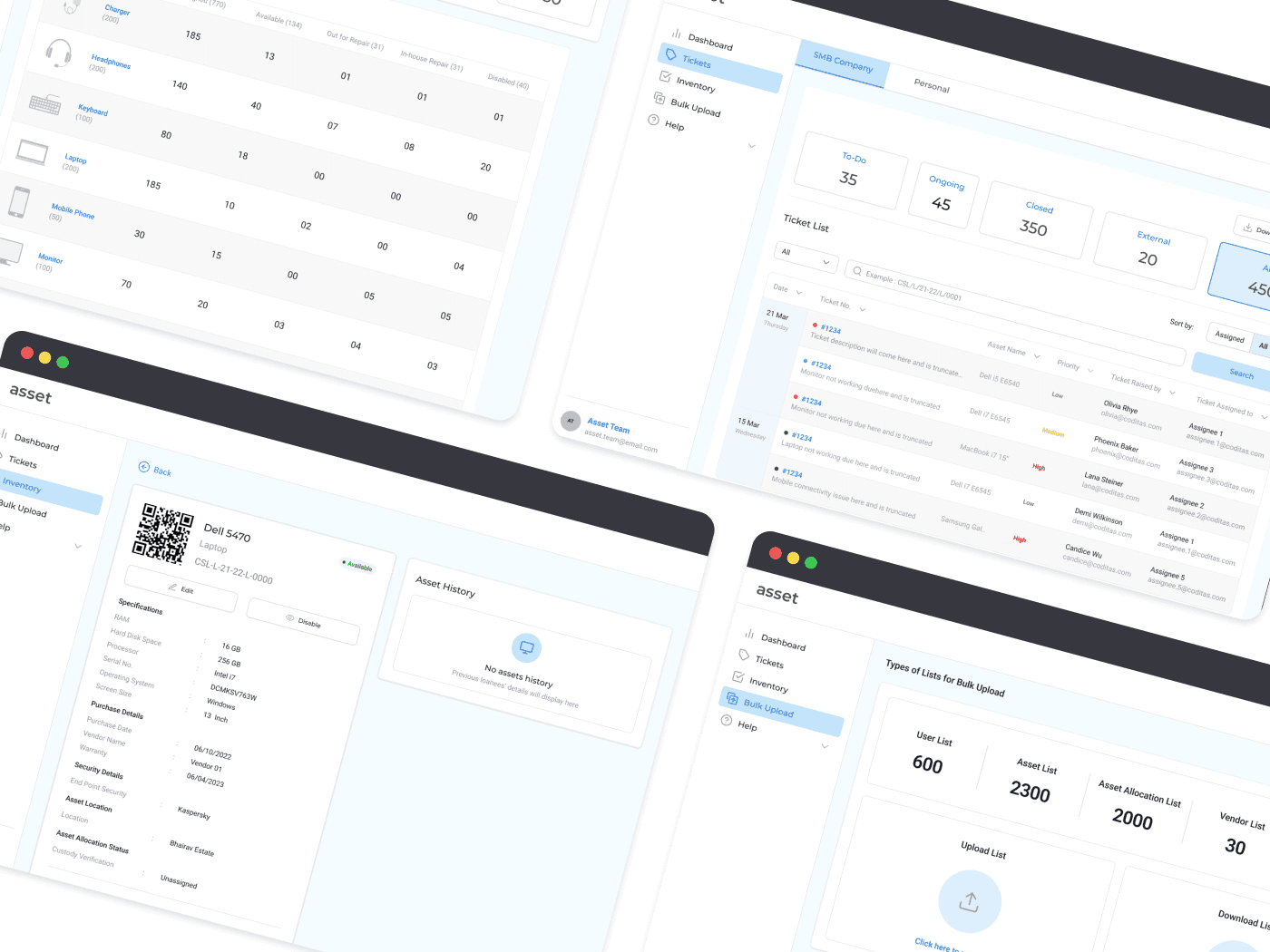
Empowering IT teams with tracking the entire lifecycle of an Asset
The Asset Management Platform is SAAS product for SMBs that keeps inventory of all the company assets and its movement between the company, company IT Department and the employees. Let me take you through my process of how I empowered IT teams with asset lifecycle information to gain insights and make informed decisions on the company's assets.
The client is a leading cloud-based Connected Workplace solutions enterprise who approached us to come up with an Asset Tracking solution. I’ve omitted or obfuscated confidential information in this case study, and changed the colour of the screens from blue to green.
About Asset
Asset is an Asset Management Software targeted towards SMBs to help the Asset Management team track assets and improve communication between employees and the IT asset team. The software allow employees to raise tickets and get quick updates on their asset status and IT teams to manage, track and inventorize assets.
My Role
I led the analysis and design of the asset tracking experience for asset management teams through discovery, inception and delivery. I collaborated with an Agile cross-functional team of developers, a project manager, a product owner and a number of executive stakeholders.
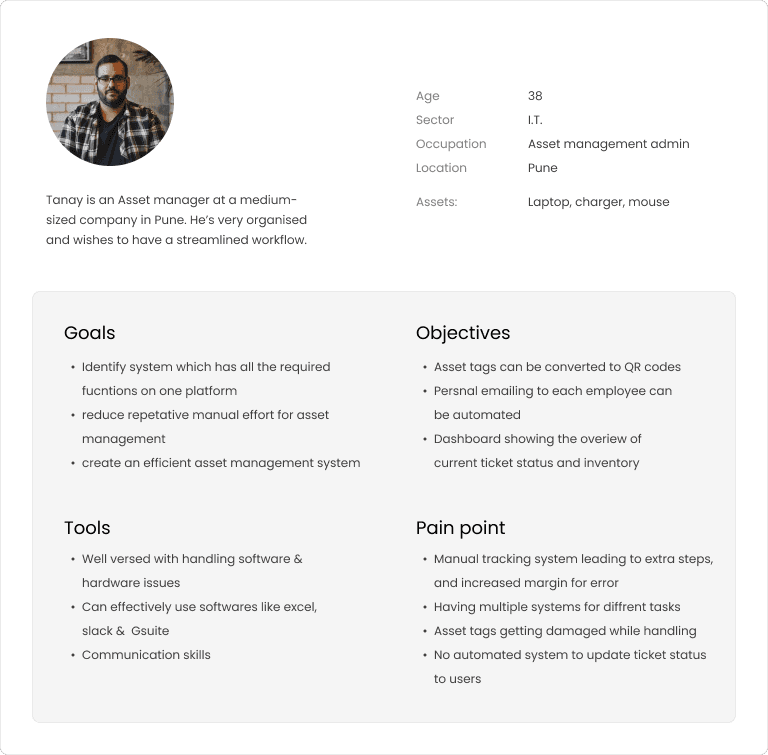
The IT team member keeps an inventory of all of the assets within the company. They have to track its movement within the company between employees, internal IT team members and external repair agencies. The typical journey of the IT asset management employee who tracks all such assets begins with uploading the asset ID to the inventory.

Journey of an IT Asset Manager
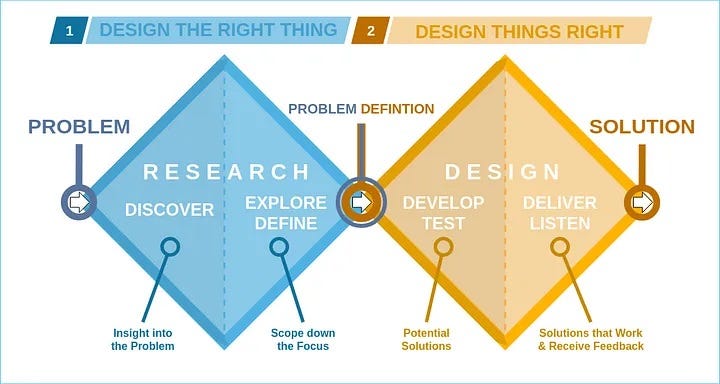
Double-Diamond UX Process
Discover: Understand the problem space through research and insights gathering.
Define: Define the problem based on user needs and project goals.
Develop: Generate ideas through brainstorming and prototyping.
Deliver: Refine and implement the best ideas into tangible solutions.
It's a cyclical process of divergent and convergent thinking, where I explored a wide range of ideas before narrowing down to the best ones for implementation.
JUMP TO FINAL DESIGNS
Understanding the problem space
The existing system relied on manual processes and disparate spreadsheets, leading to inefficiencies, errors, and difficulties in tracking and managing assets. The goal was to create an intuitive and centralized tool to streamline asset management processes.
From the onset, I did not have an understanding of the current asset management experience. I partnered with fellow colleagues to undertake user research and discover user insights.

Key Learning 1 : There was genuine need for a tool that would keep track of an asset's entire lifecycle.
We expected a lot of resistance from IT employees to change from manual tracking to uploading all of the information on a system. Turns out, they were looking forward to using a software that would handle the mundane tasks.
They wanted to focus more on valuable tasks such as conducting audits, that would help the asset management team make informed decisions regarding the best performing assets.
Key Learning 2 : There was a communication gap between employees and the IT team.
When employees raised issues pertaining to their assets, there was a lack of transparency in ticket resolution time. IT team members were handling multiple tickets at once and could not update each employee individually on the ticket statuses.

Key Learning 3 : Manual processing meant human errors everywhere.
The Asset Management team would receive assets by the hundreds (sometimes thousands) at once. Each serial number would have to be marked and recorded, sometimes on spreadsheets, other times on old fashioned pen and paper. Capturing these was hard.
There was a communication gap between IT team members who couldn't keep track of the last member who had handled an asset or a ticket.
Framing the problem
As a team, we agreed based on research that:
No visibility into the asset lifecycle caused inventory management problems.
No consistent mechanism to reliably manage assets caused diffusion of responsibility, discord, incoordination and inefficiencies.
Improving Key Business Metrics
Improve the ticket resolution rate — We would measure success by calculating the time it took to resolve tickets previously compared to when they started using the software.
Time Saved on Asset Management Tasks - Measure the amount of time SMB clients save by using the platform for asset management tasks compared to their previous methods. This can demonstrate the platform's efficiency and value.
Our Renewed Goals
How might we provide visibility into the asset lifecycle?
How might we bridge the communication gap between the asset team and employees?
The Solution
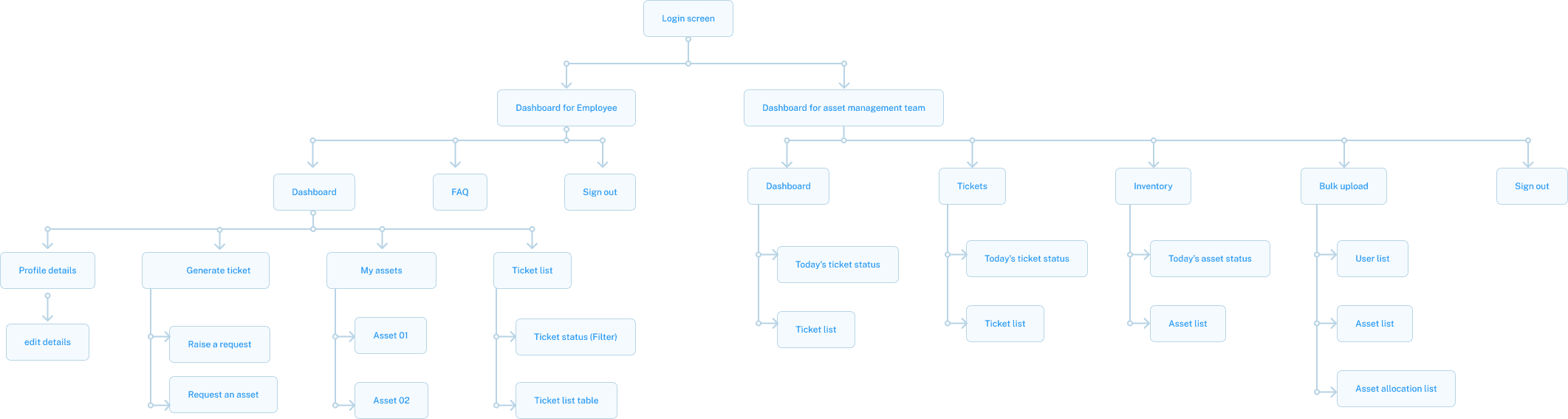
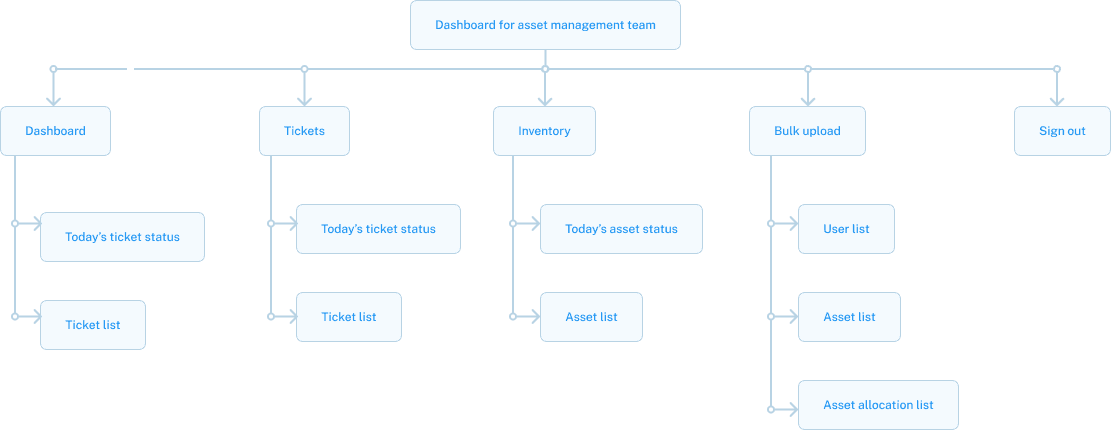
A webapp wherein asset team members can inventorize, manage and track assets and employees can raise issues they face with a particular asset. The Asset team would work with a dashboard that would display all relevant information to the asset and tickets. A section was added to bulk upload all information relating to assets and employees.
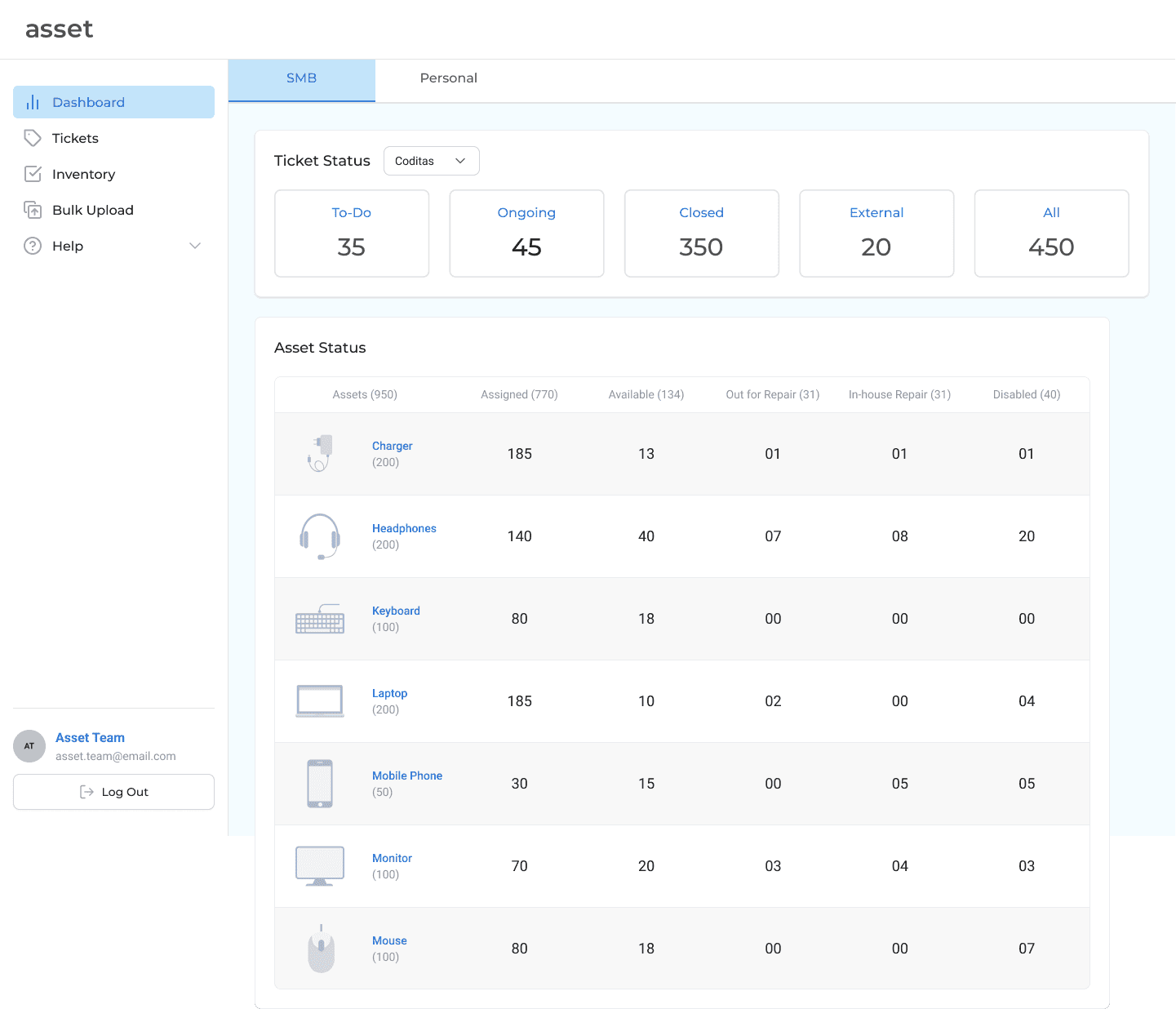
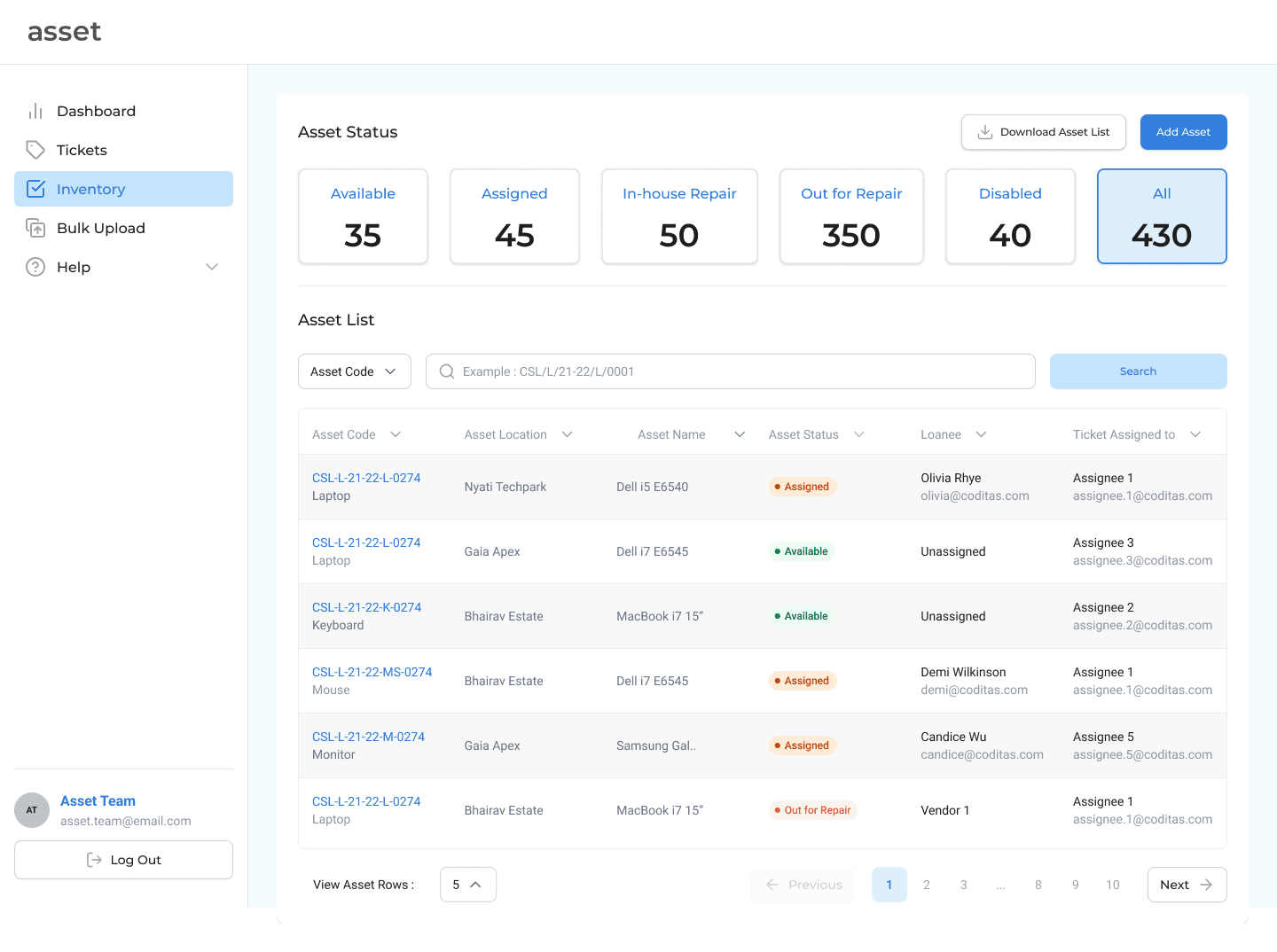
I. Detailed inventory system to capture all data relating to specifications, serial numbers, and purchase details for streamlined tracking.
A detailed inventory system was required to keep a track of all of the assets coming in and going out. This required detailed categorisation of assets and tracking the status and location of the asset.
The Inventory dashboard displays a list of all of the current assets existing in the company. Individual assets can be filtered and searched for. Clicking on the Asset code link opens up a detailed view of the Asset.
Adding An Asset To The System
Let's begin by clarifying how each asset is categorised and marked. The company receives a shipment of assets. Each shipment has different boxes labelled mouse, keyboards, laptops, monitors etc. These are Asset Types. In turn, each individual device, for example, a mouse would have a specific number assigned to it. This would be an Asset.
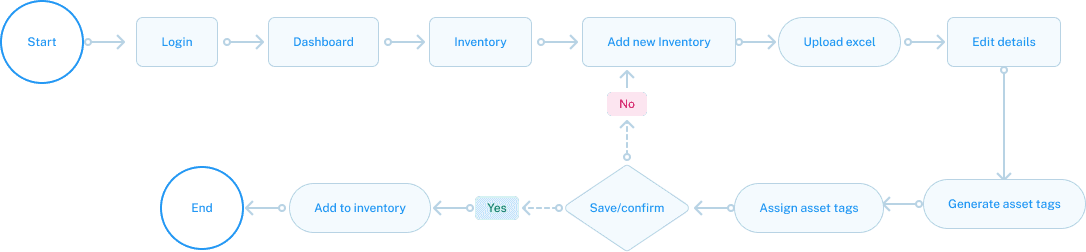
Companies that were buying this software were essentially medium-sized businesses who were looking to switch from the manual mode of tracking assets to the software. Such users usually used spreadsheets to keep a track of existing assets. Thus, it was essential that the user be able to upload spreadsheet data which the system could convert and store.
Initially, I ideated a feature that would generate asset tags based upon the specifications of the Asset. The user would merely have to input the asset type and model and a unique code would be generated. However, this would require printing of the Asset tags and physically sticking them onto each individual asset, a process that was already being used whilst tracking manually.
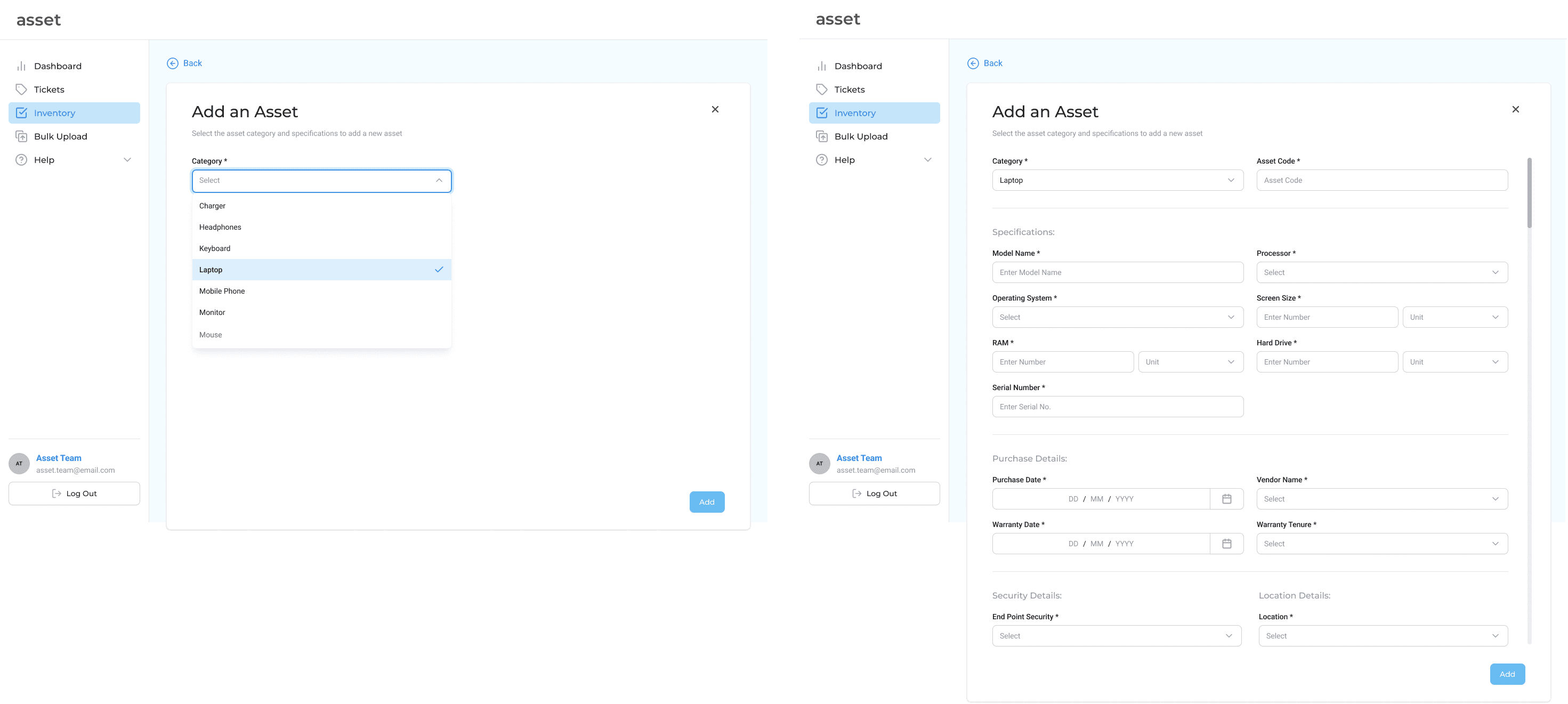
I then switched to a form format that users would have to fill up in order to add an asset to the existing inventory. Since Asset tags were already in place in SMBs, the IT employee would merely have to input the Unique Asset ID. The form displayed relevant fields according to the Asset Category the user chooses. But individually adding assets to the inventory posed a grave question :
How would users upload hundreds, even thousands rows of existing data?
Bulk Upload
Initially, I had allowed the asset management team to upload an excel file in the inventory dashboard itself. However, a need arose.
Most assets would be assigned to employees themselves. This would mean that the team would have to keep a track of the employees as well. Bulk upload helps you view the location of all the assets in one place.
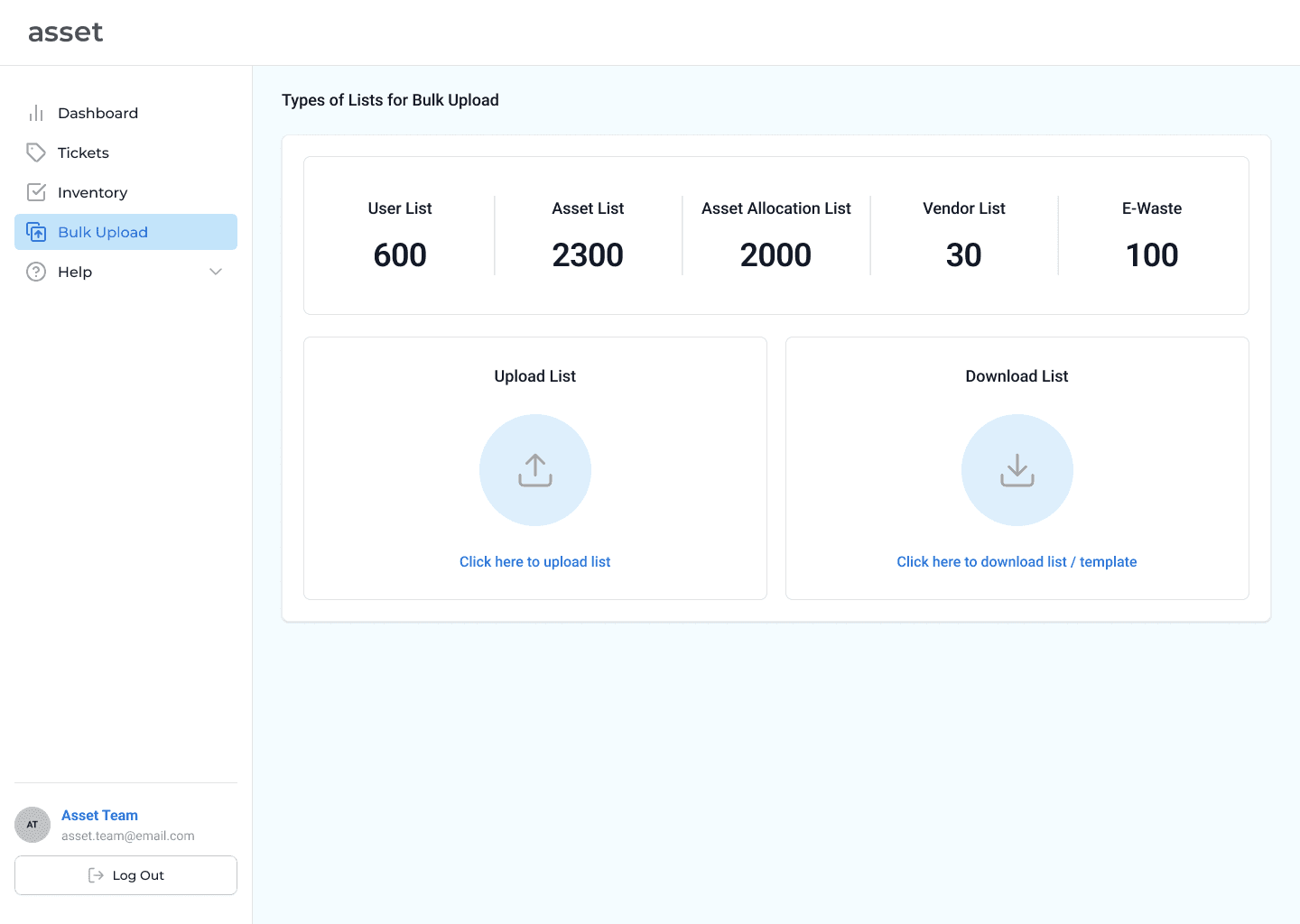
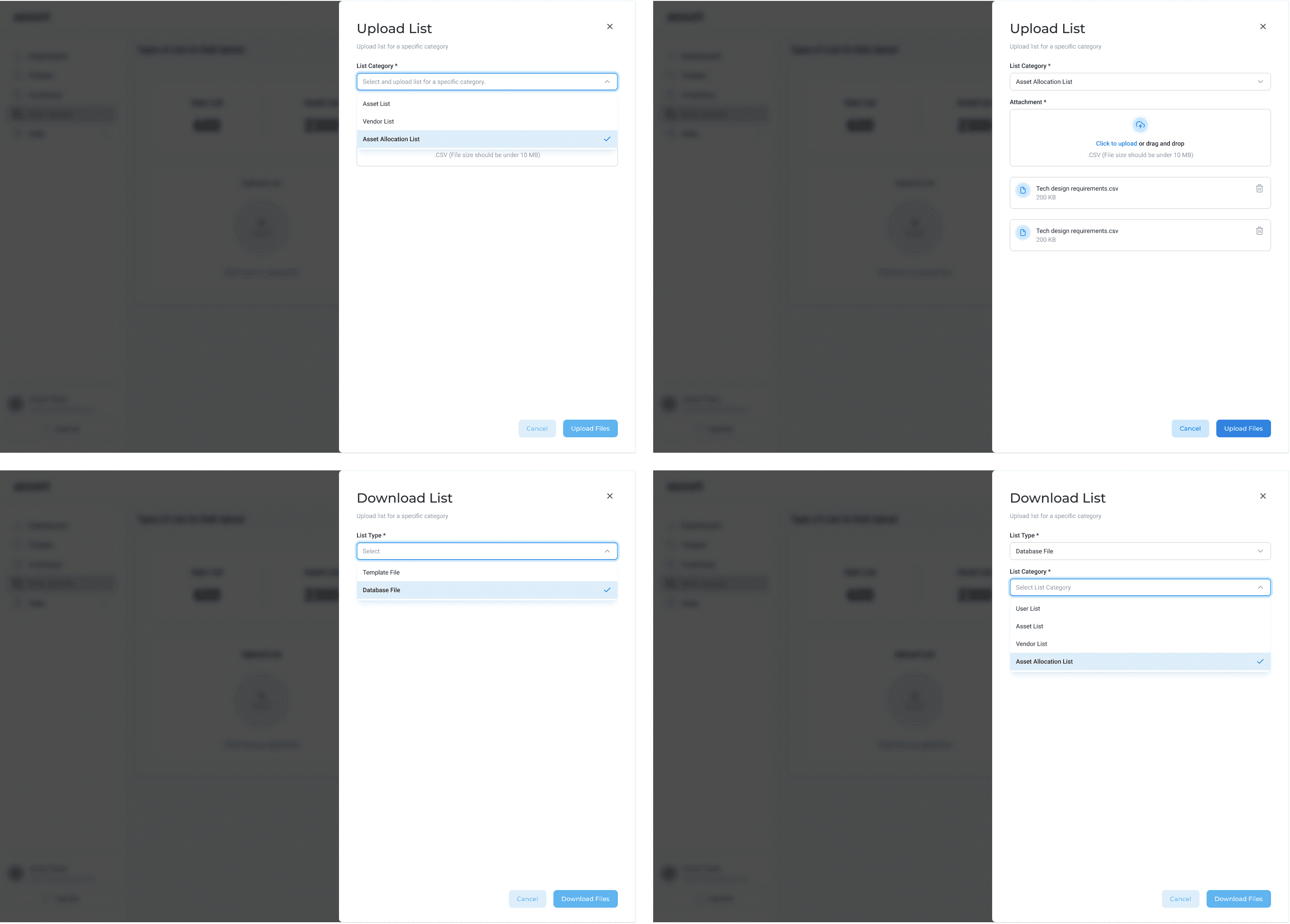
Now, IT team members can easily upload rows of data relating to employee and asset information on the system. Since, company information is stored differently across companies, I streamlined the process by allowing users to download a spreadsheet template and upload relevant information. This would be a one-time effort.
Asset details and history
Once the IT Asset Manager uploads the Asset, they can freely view the Asset details by selecting any asset from the asset list in the Inventory dashboard.
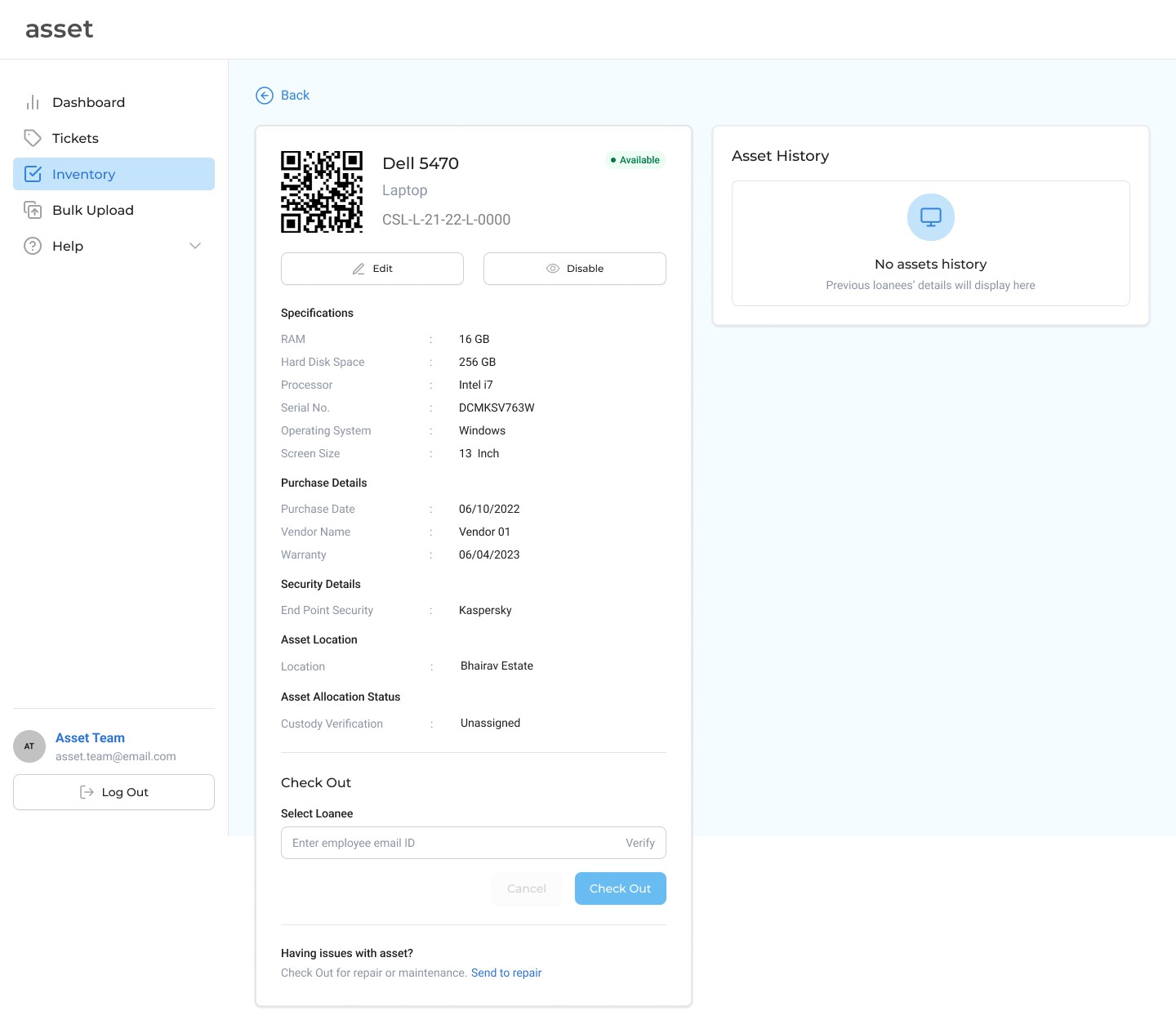
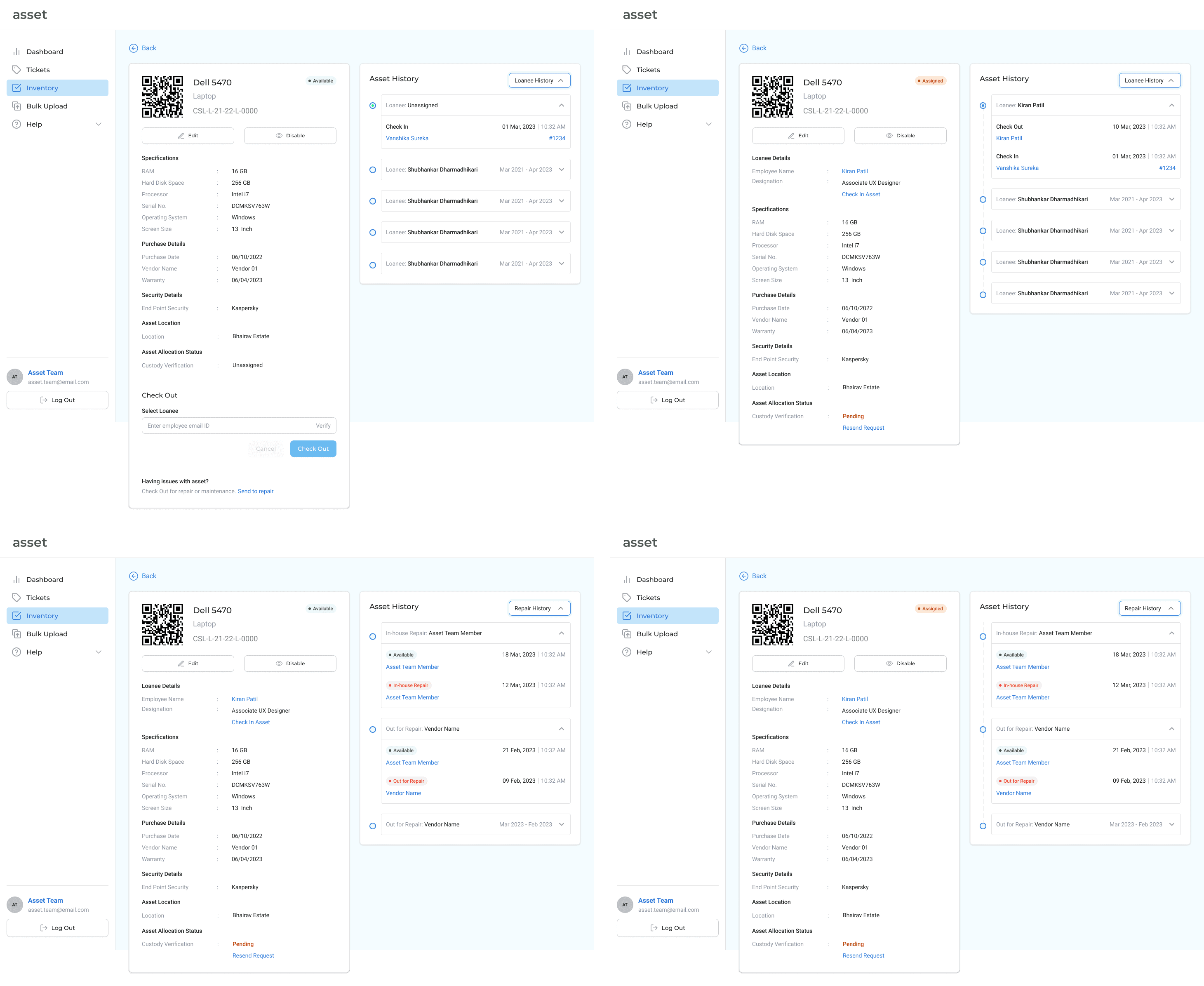
There are four variations for the Asset History section. A tag on the asset details page verifies whether it has been assigned or is available to be assigned to an employee. The dropdown helps IT team members to toggle between loanee history and repair history.
How can the IT Asset team member assign an asset to an employee?
Check-in and Check-out Assets
When an asset is ready to be assigned to an employee, the IT team member can check out the asset. This can only be done once the name of the employee has been verified against the list of the names of the employees uploaded by an Asset Manager. The IT member who checks out the asset has been hyperlinked to make it possible to track the reason of check in and check out of the asset in case of any discrepancies.
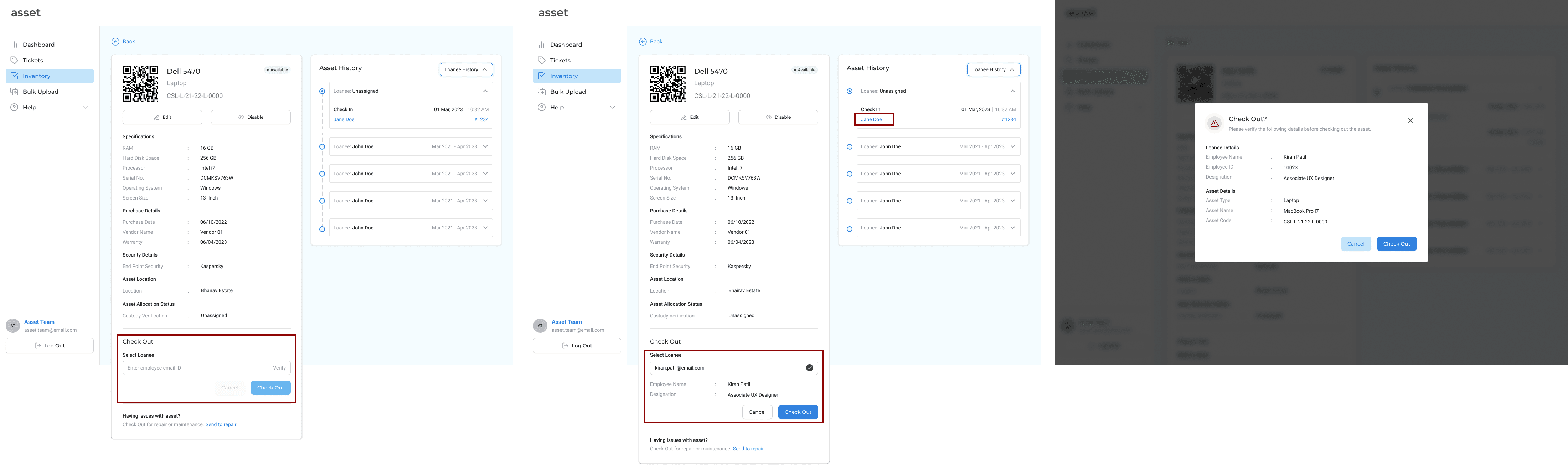
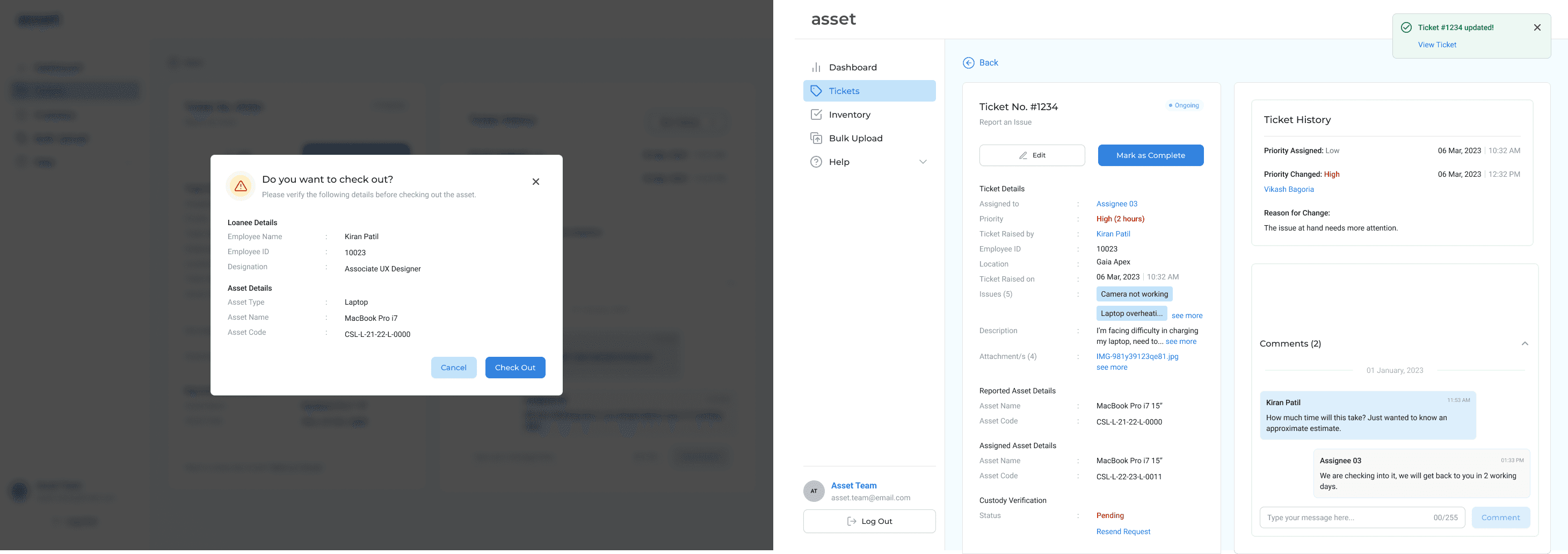
Once the system verifies the employees' email ID, a request is sent to the employee, asking them to verify the asset custody. The Check out process is complete from the IT members end and will be complete once the employee verifies it from their end. The asset handover happens once the employee completes the custody verification.
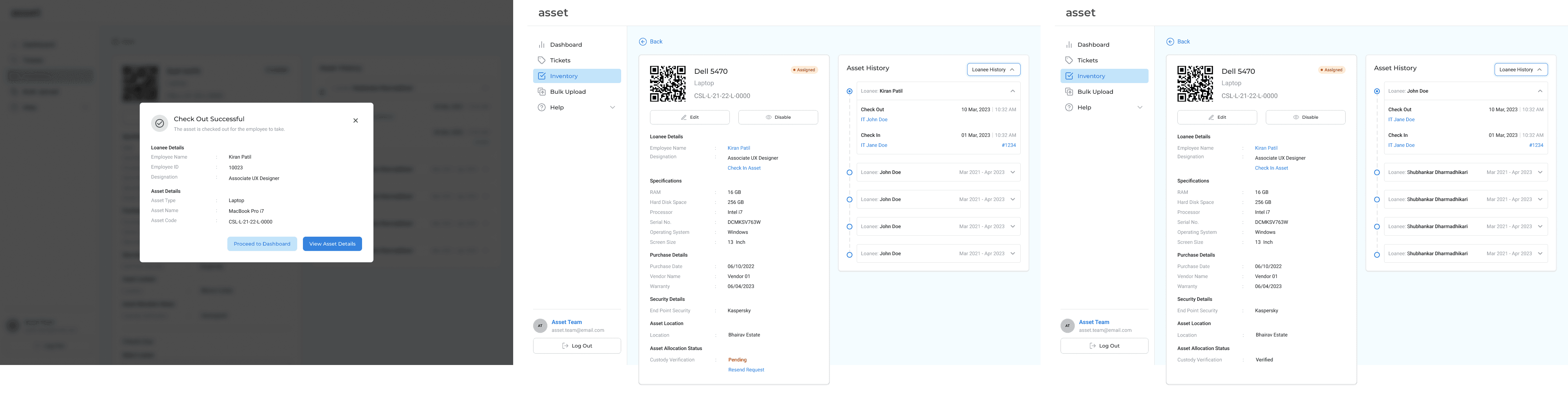
Once the asset has been checked out and assigned to an employee, the Asset details updates to include employee details.
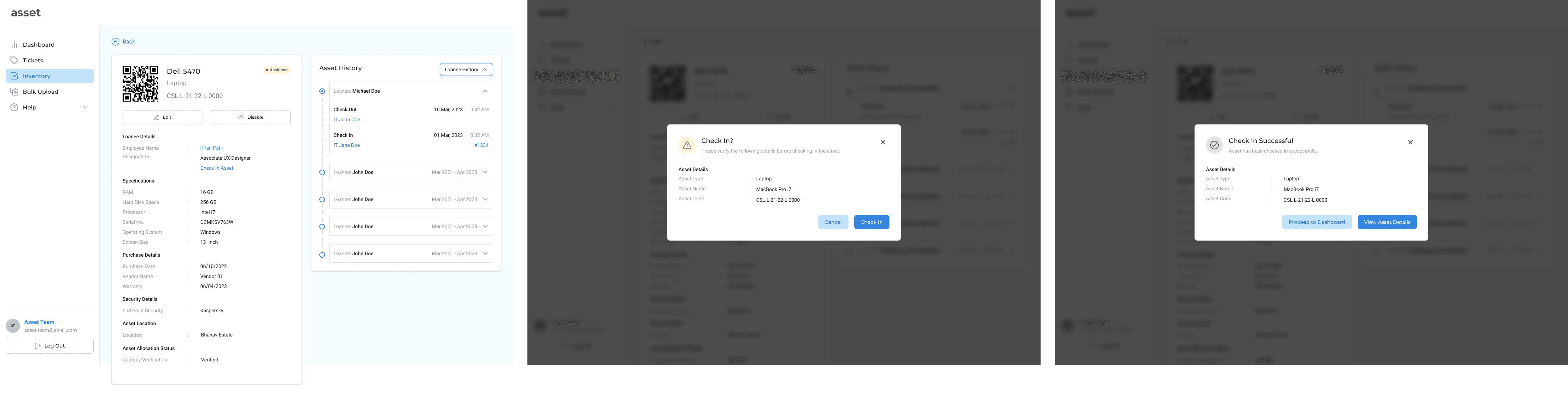
Suppose the employee finds a problem with the asset. They raise a ticket and the IT team member asks to examine the asset. The issue can either be fixed in-house or be given to an external vendor. The check-in tertiary button appears in such cases wherein the employee wishes to exchange or return the asset.
Repair History
Suppose the employee finds a problem with the asset. They raise a ticket and the IT team member asks to examine the asset. The issue can either be fixed in-house or be given to an external vendor. The check-in tertiary button appears in such cases wherein the employee wishes to exchange or return the asset.
A form appears wanting to know the details of the issue that the asset is facing.
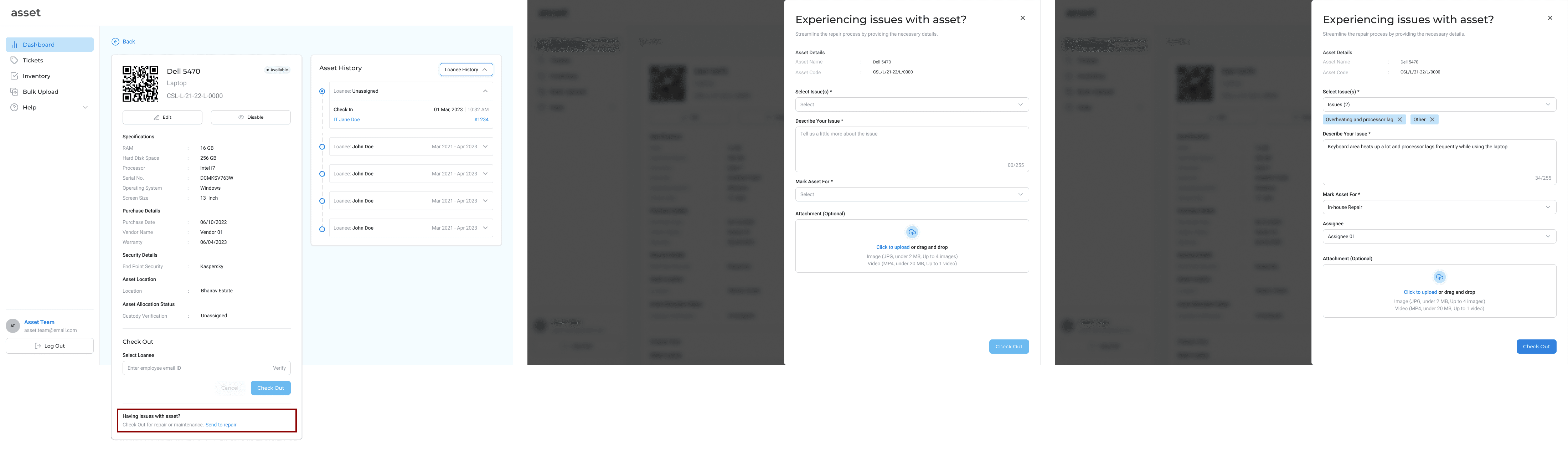
Once the system verifies the employees' email ID, a request is sent to the employee, asking them to verify the asset custody. The Check out process is complete from the IT members end and will be complete once the employee verifies it from their end. The asset handover happens once the employee completes the custody verification.
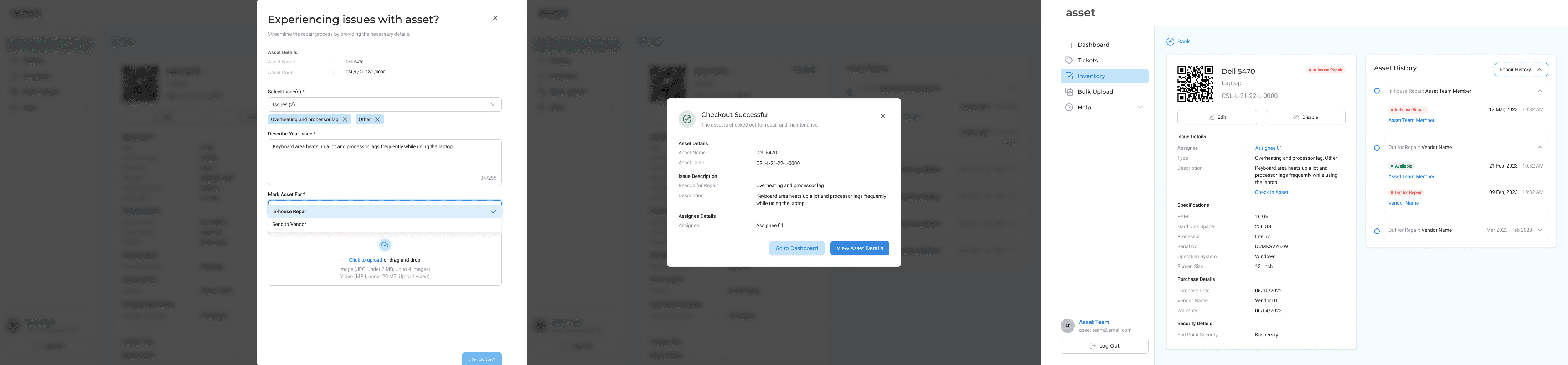
II. Ticket Management System
To promote transparency between employees and IT employees, a ticketing system was put into place. Now, whenever employees faced an issue with an asset, they can raise an issue and get updates over the software itself. The ticket status is sorted by To-Do, Ongoing and Completed for the ease of use for IT employees and by priority status to give employees an estimate of the ticket resolution time.
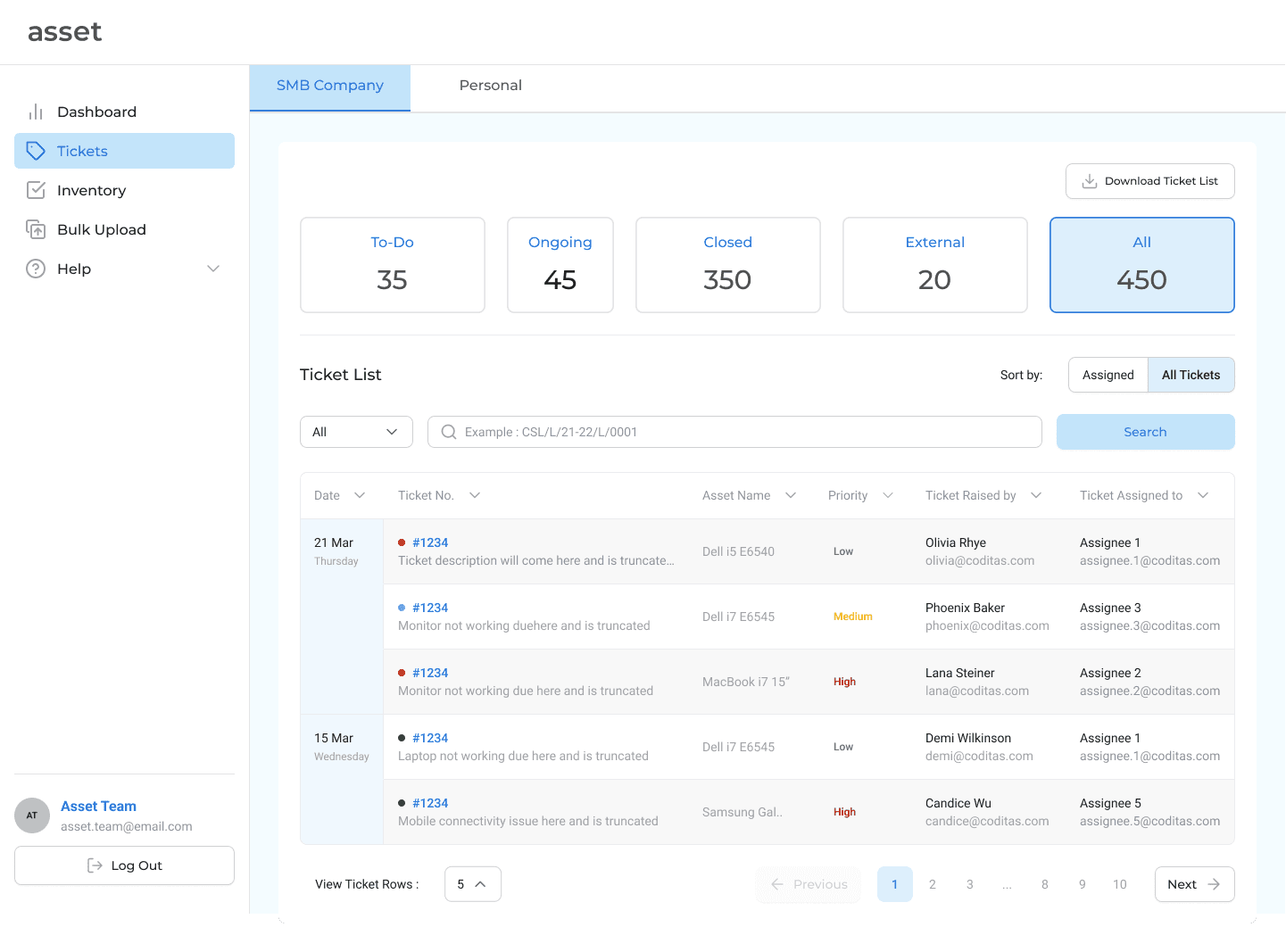
Reporting An Issue
When an employee first raises an issue pertaining to their asset, the ticket shows up on the tickets list of the ticket dashboard of the IT employee. On clicking on the ticket, a detailed view opens up listing all the important details. All members of the IT department have access to the list of tickets and can assign themselves or anyone else to solve the ticket. This was done to improve transparency and communication among the IT employees.
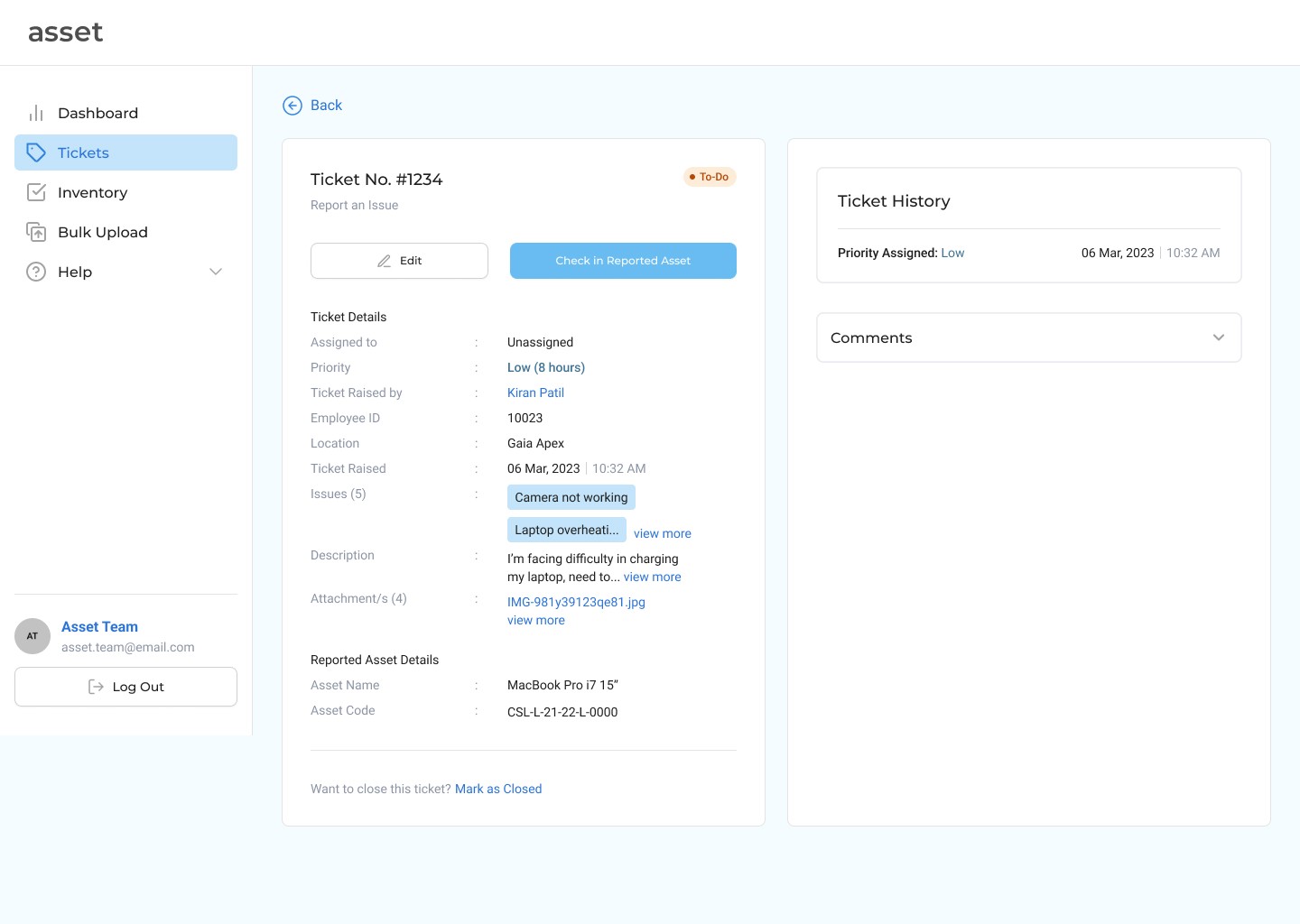
The status priority has been set in the backend by the admin. On the basis of various tags set by the user while explaining the issue, the system categorizes the ticket as low priority (estimated time ~ 8 hours). This can be edited by the assigned IT team member who whilst communicating with the employee about the severity of the issue can update the status or priority of the ticket.
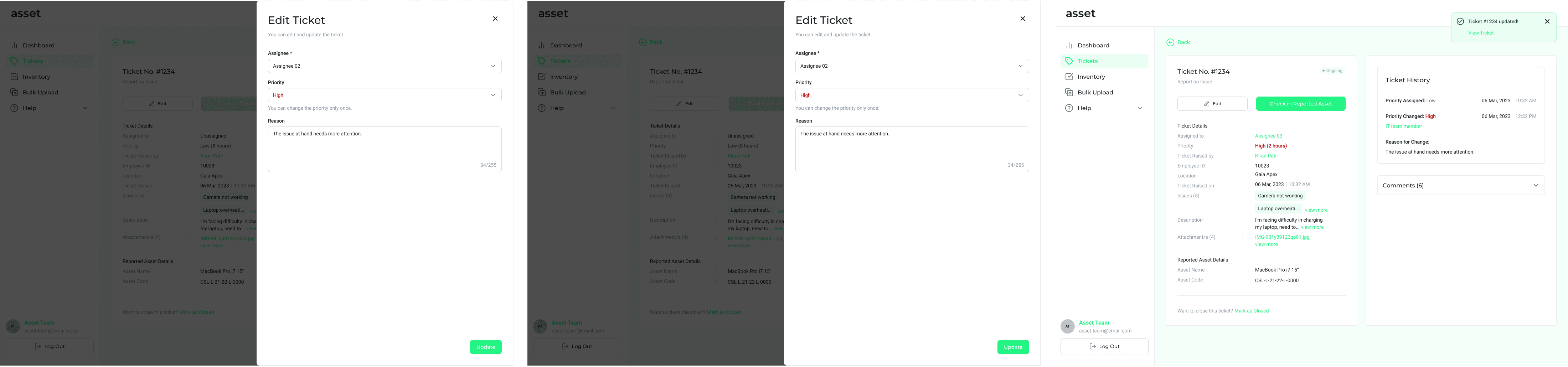
Once the ticket is assigned to someone, the ticket changes to the Ongoing status. On communicating with the employee through the comments section, the IT team member realizes that the issue might be more pertinent and changes the priority to High. The ticket history then reflects the edits made in the ticket.
Check-In and Check-Out Asset
Due to the severity of the issue, the employee is asked to Check-in the asset with the IT team so that they can repair the issue.
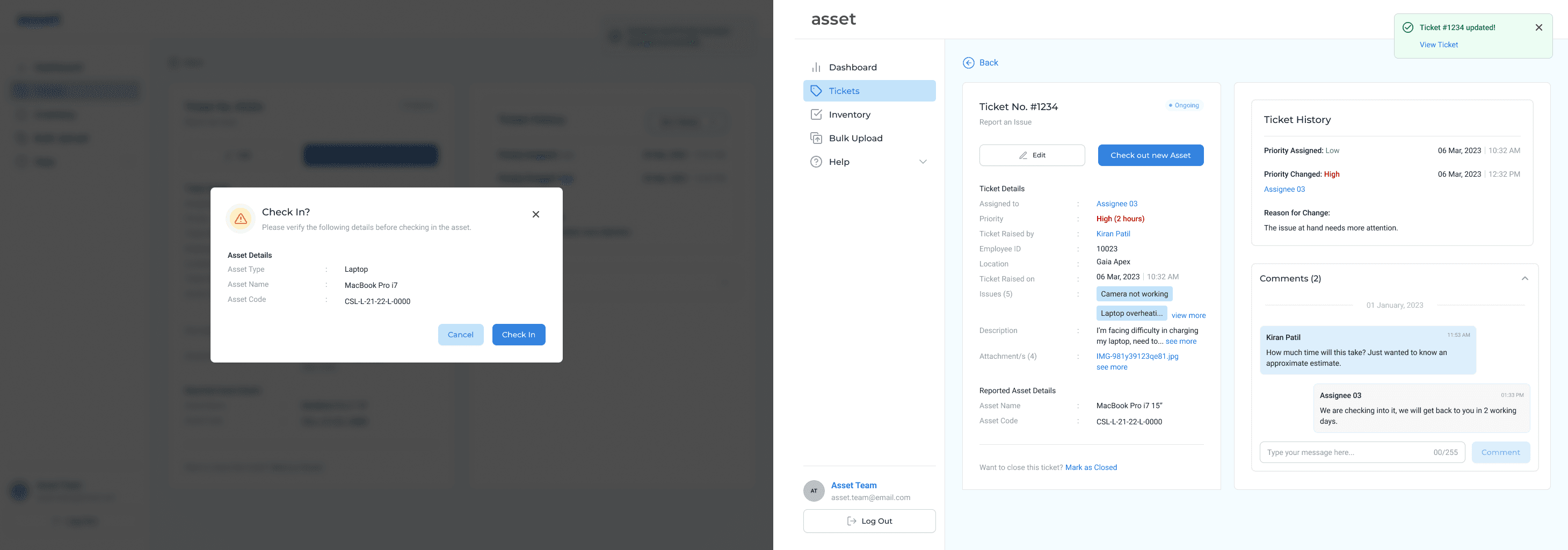
Once they check-in an asset, the ticket details section updates, to provide an option for the IT employee to check out an asset to enable the employee to resume work uninterrupted.
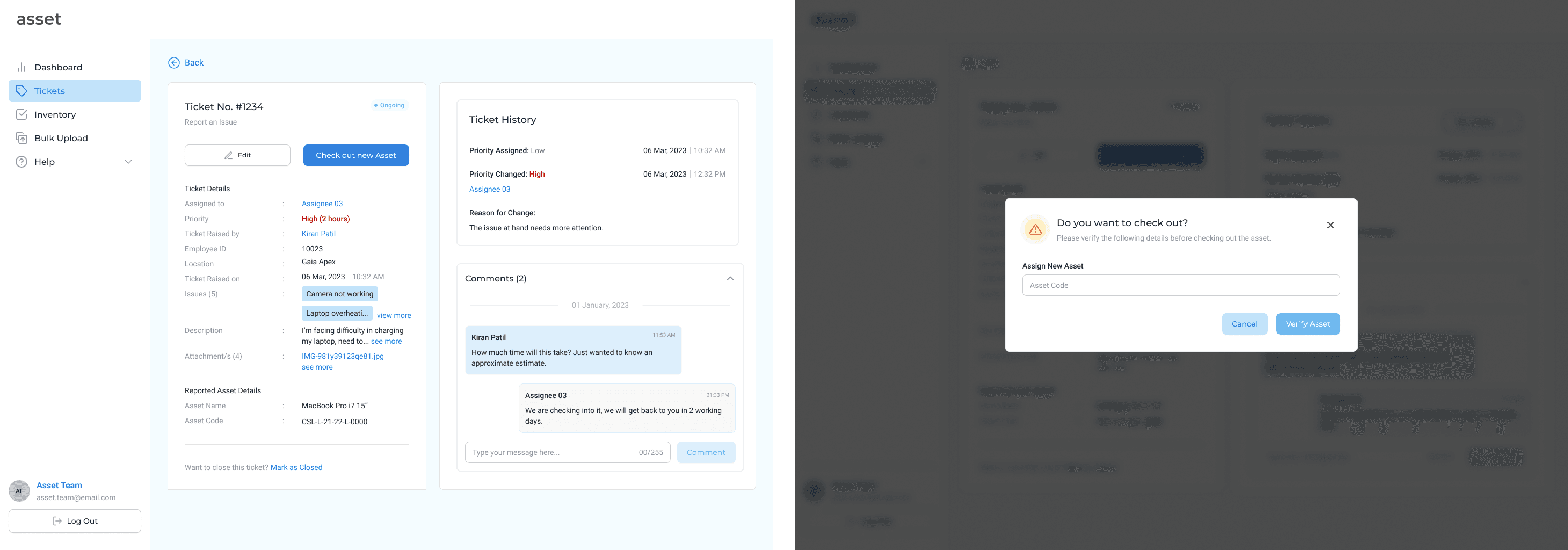
Once an asset has been checked out, an email is sent to the user for custody verification. Once the employee, verifies the email, the asset is handed over.
Closing A Ticket
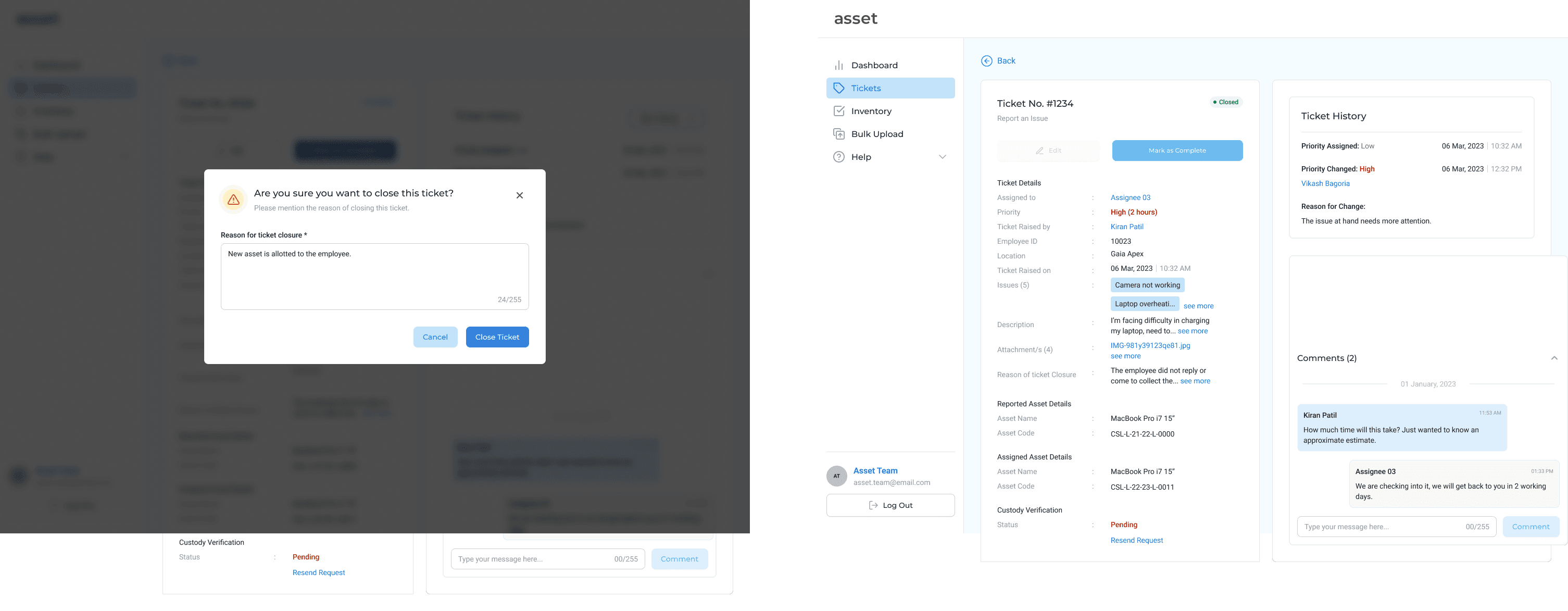
Once the IT team member is finished with the task at hand, they can close the ticket to quickly move on to the next ticket. They can still view the details of the closed ticket to verify custody verification and audit the tickets in the end.
There are four variations for the Asset History section. A tag on the asset details page verifies whether it has been assigned or is available to be assigned to an employee. The dropdown helps IT team members to toggle between loanee history and repair history.